
Kahoot is a free online quiz and game-based learning platform that turns classroom teaching into interactive, real-time competitions. Teachers create quizzes, students answer on their devices, and instant feedback keeps everyone engaged. This article covers how to set up Kahoot, design quizzes for your students, and use it to make interactive teaching more effective in your POD or home tuition centre.
What Is Kahoot and Why Use It for Interactive Teaching?
Kahoot is a web-based platform where teachers design multiple-choice quizzes and students answer using their phones, tablets or computers. Each student sees the questions on a shared screen and selects answers on their own device. Kahoot shows scores, rankings and instant feedback after every question, which makes learning feel like a game rather than a test.
For Indian educators running PODs or tuition centres, Kahoot works well because it requires only an internet connection and any device with a browser. Students stay focused because they compete for points and see their rank update live. Teachers get instant data on which questions most students got wrong, helping you adjust your lesson on the spot. WhatsApp for classroom communication keeps parents informed, and Kahoot keeps students engaged during the actual learning session. Research from UNESCO on global education shows that interactive, game-based learning increases student participation and retention compared to passive instruction.
How to Set Up Your Kahoot Account and First Quiz
Start by visiting kahoot.com and signing up with your email address. Choose “Teacher” as your account type. You can sign up free, and the free plan includes unlimited quiz creation and hosting for up to 100 students per session.
Once logged in, click “Create” and select “Kahoot” to build a new quiz. Add a title (for example, “Class 5 Maths: Fractions”), a description, and choose your language. You can set the quiz to public (anyone can find and play it) or private (only people you invite can join). For your POD, private quizzes are safer because only your students access them.
Add questions one by one. For each question, write the prompt, set a time limit (10 to 120 seconds), and add up to four answer options. Mark the correct answer with a tick. You can add images or videos to questions, which helps younger students or visual learners. Save your quiz when done.

How to Run a Kahoot Session in Your Classroom or POD
On the day of the session, log into Kahoot, open your quiz and click “Play”. Choose “Classic” mode for a live game where all students answer at the same time, or “Team Mode” if you want students to work in pairs or small groups.
Kahoot will generate a unique PIN code (four digits). Display this PIN on your monitor or projector. Ask each student to go to kahoot.it on their device, enter the PIN, and type their name or nickname. Once all students have joined, click “Start” to begin the quiz.
As each question appears on the shared screen, students have the countdown timer to select their answer on their device. When time runs out, Kahoot reveals the correct answer and shows a live leaderboard. Students see their points, and the top scorers are highlighted. This instant feedback loop keeps energy high and helps students remember the right answers.
After the session ends, Kahoot shows a summary report with the total number of correct answers per question and each student’s final score. You can download this data as a CSV file to track progress over time.
Tips for Designing Effective Kahoot Quizzes for Interactive Teaching
Keep questions short and clear so students understand them quickly. Avoid ambiguous wording or trick questions that confuse rather than teach. For example, instead of “Which of these is not a renewable resource?”, ask “Which resource is renewable?” and make the correct answer obvious to students who studied the material.
Use a mix of question types to test different levels of learning:
- Factual recall questions (dates, definitions, names)
- Conceptual questions (why something happens, how concepts connect)
- Application questions (how to use a concept in real situations)
- Analysis questions (compare, contrast, evaluate)
This variety keeps the quiz engaging and tests deeper learning, not just memory.
Set time limits based on question difficulty. Easier questions might need only 10 seconds; harder ones need 30 to 45 seconds. If students rush and guess, they learn less. If time is too short, even prepared students fail, which discourages them.
Add images, diagrams or short videos to questions when possible. A visual question about geography, science or history is more memorable than text alone. However, keep files small so the quiz loads quickly on slower internet connections, which is common in many Indian homes and community centres.
Test your quiz before using it with students. Play through it yourself to check for typos, wrong answer keys or timing issues. A smooth first session builds student confidence in using the tool.
How to Integrate Kahoot Into Your Teaching Plan
Use Kahoot at different points in your lesson. At the start of a class, run a short 5-question quiz to review the previous day’s content and refresh student memory. During the lesson, use Kahoot to check if students understood a concept you just taught. At the end, use a longer quiz to assess learning and identify gaps.
Kahoot works best when paired with direct teaching, not as a replacement for it. Teach the concept first, explain it with examples, then use Kahoot to reinforce and test. Students who see a concept explained, then play a Kahoot quiz about it, remember it better than those who only take the quiz.
For PODs serving mixed-age groups, create separate quizzes for each level. A Class 3 maths quiz should not be the same as a Class 5 quiz. Tailored quizzes keep each group at the right difficulty level and prevent frustration or boredom.
Track results over several sessions. If most students consistently get a question wrong, that topic needs more teaching time. If everyone gets a question right, you can move faster through that material. Best note-taking apps for students help learners record what they discover during Kahoot sessions and review it later.
Internet, Devices and Setup Challenges in Indian PODs
Kahoot needs a stable internet connection. If your POD has weak Wi-Fi, students may drop out mid-quiz, which ruins the experience. Test your internet speed before a session. If it is too slow, consider running Kahoot on fewer devices at once, or use offline alternatives like printed quizzes for that day.
Each student needs a device (phone, tablet or laptop) to answer. If your POD does not have enough devices, students can share or take turns. However, shared devices slow down the session and reduce engagement. If you are setting up a POD, investing in affordable computers like APNA PC (Rs.30,000 for a complete bundle with monitor, keyboard, mouse and pre-loaded educational software) ensures every student has a device and can participate fully in interactive teaching tools like Kahoot.
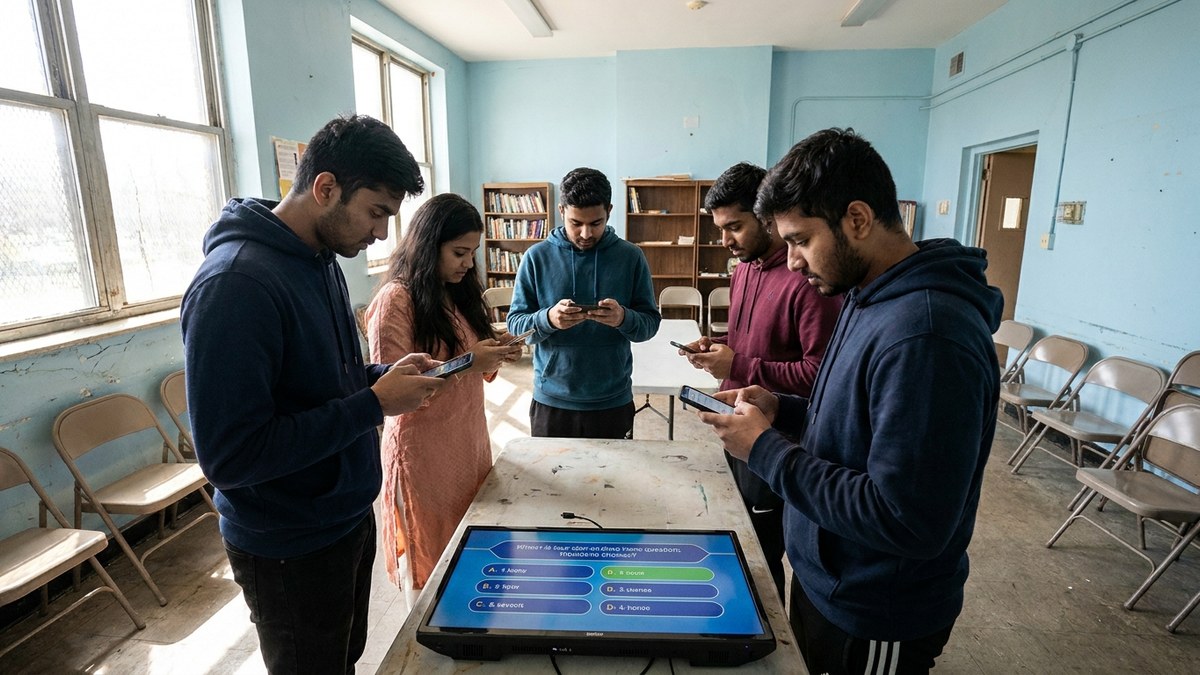
Test Kahoot on the devices your students will use before the session. Some older phones or browsers may not support all Kahoot features. Knowing this in advance prevents surprises on the day.
Free and Paid Kahoot Plans: What You Need
The free Kahoot plan is enough for most teachers. You can create unlimited quizzes, host sessions with up to 100 students, and access basic reports. Kahoot+ (paid plan) adds features like custom branding, advanced analytics and the ability to assign homework. For a home-based tuition centre or POD, the free plan is a good starting point.
Kahoot also offers Kahoot+ for Schools, a plan designed for institutions. If your POD grows and you want school-level features, this plan is worth exploring. However, start free and upgrade only if you need the extra features.
How Kahoot Compares to Other Interactive Teaching Tools
Kahoot is not the only quiz tool available. The table below compares Kahoot with other popular interactive teaching platforms:
| Tool | Cost | Game Format | Real-Time Leaderboard | Best For |
|---|---|---|---|---|
| Kahoot | Free (with paid options) | Yes, game-show style | Yes, live ranking | Younger students, high engagement |
| Google Forms | Free | No | No | Quick assessments, simple quizzes |
| Quizizz | Free (with paid options) | Yes, game-like | Yes, individual pace | Self-paced learning, homework |
| Nearpod | Paid | Moderate | Optional | Structured lessons with embedded quizzes |
Kahoot stands out because of its real-time leaderboard and game-show feel. Students find it fun, which boosts participation. For teachers new to interactive teaching, Kahoot is easy to learn and does not require coding or advanced tech skills.
Choose the tool that fits your teaching style and student age group. Younger students often prefer Kahoot’s game format. Older students may prefer tools that feel more like real assessments. Try a few and see what works best for your POD. Suno AI for educational songs and Perplexity AI for student research are complementary tools that pair well with Kahoot to create a full interactive learning experience.
Frequently Asked Questions
Do students need to create a Kahoot account to play?
No. Students only need to enter the PIN code and a nickname to join a live session. They do not need to sign up or log in, which makes it quick and easy for first-time users. This is especially helpful in PODs where students may not have email addresses or be comfortable with account creation.
Can I use Kahoot offline or without internet?
Kahoot requires an internet connection to run. There is no offline mode. If your internet goes down, the session stops. Plan for this by having a backup activity ready, such as a printed quiz or group discussion. If internet is unreliable in your area, consider using Kahoot only or twice a week when you can ensure a stable connection.
How do I know if students are cheating in a Kahoot quiz?
Kahoot shows each student’s answer and response time. If a student answers instantly on every question, even hard ones, they may be guessing or cheating. Watch for patterns. You can also ask students to explain their reasoning for a few answers after the quiz ends. This helps you assess real understanding and discourages dishonesty.
Can I use Kahoot for subjects other than maths and science?
Yes. Kahoot works for any subject: languages, history, social studies, current affairs, life skills and more. The key is writing clear questions and using images or videos where they help. For language learning, include audio clips of pronunciation. For history, add images of historical events or monuments.
How often should I use Kahoot in my POD?
Once or twice a week is ideal. Using Kahoot every day may make it feel routine and lose its novelty. Mixing Kahoot with other teaching methods keeps students engaged and prevents screen fatigue. Balance interactive tools with hands-on activities, group work and direct teaching.
Kahoot is a practical, free tool that makes interactive teaching engaging and measurable. Start with a simple quiz, run one session with your students and see how they respond. As you get comfortable, create more quizzes and refine your approach. To build a full learning environment with reliable devices and software, start your own learning POD with APNA PC, a complete bundle with pre-loaded educational tools, 3-year warranty and installation support.