
Your child is online right now. Do you know what they’re actually doing?
Most people don’t realise that online safety isn’t about fear. It’s about smart habits. Your kids will use computers. They will go online. That’s not changing. What changes is whether they do it safely or not. Online safety tips for students aren’t boring rules meant to kill fun. They’re practical shields against real problems that Indian parents face every single day.
Let’s be honest: internet safety for kids starts at home. Not in school. Not with software alone. With you.
Why Home Safety Matters More Than You Think
When your child sits at a computer at home, they’re in your space but often in their own digital world. That gap is where problems hide. A student downloading files from unknown sources. Clicking on links in messages from “friends.” Sharing personal information on games or apps. These aren’t mistakes made by careless kids. They’re normal behaviors that need guidance.
Here is the truth: safe computer use at home depends entirely on what you set up before they even touch the keyboard. Not just the device. The environment. The rules. The trust.
- Install proper antivirus software on every device
- Set up parental controls that actually work
- Create a family agreement about screen time and websites
- Keep the computer in a shared space, not hidden in a bedroom
- Check browsing history regularly without making it feel like spying
- Teach them to never share passwords, even with friends
The APNA PC bundle we offer comes with everything you need to start right. A secure device. Clear installation. Three years of warranty peace of mind. But the real security? That comes from what happens after setup.
Practical Online Safety Tips for Students Right Now
Stop waiting for the “right time” to teach these lessons. Start today. Your student needs to know five things immediately.
First: Passwords are personal. Not for parents to know. Not for best friends to know. Not for anyone. A strong password has uppercase, lowercase, numbers, and symbols. It’s at least 12 characters long. It’s different for every account. Write them down in a notebook at home if memory is the problem. Not in a phone note that can be hacked.
Second: Think before you click. That link promising free game currency? Malware. That message from your “friend” asking for your login details? Phishing. That email saying your account will be deleted unless you verify now? Scam. Teach your child to pause for three seconds before clicking anything.
Third: Your personal information is currency. Name, address, phone number, school name, parents’ names. Strangers online want this. Not because they’re all predators. But because this data has value. It gets sold. It gets used for identity theft. It gets weaponized. Your child should share almost nothing online that they wouldn’t write on a public bulletin board.
Fourth: Screenshots are forever. Whatever goes online stays online. Even deleted messages. Even “private” stories. Teach them that every photo, every message, every comment could be screenshot and shared. This isn’t about shame. It’s about understanding digital permanence.
Fifth: Talk to someone you trust. If something online makes them uncomfortable, confused, or scared, they need to tell you immediately. Not because they’ll get in trouble. Because you’re on their team.
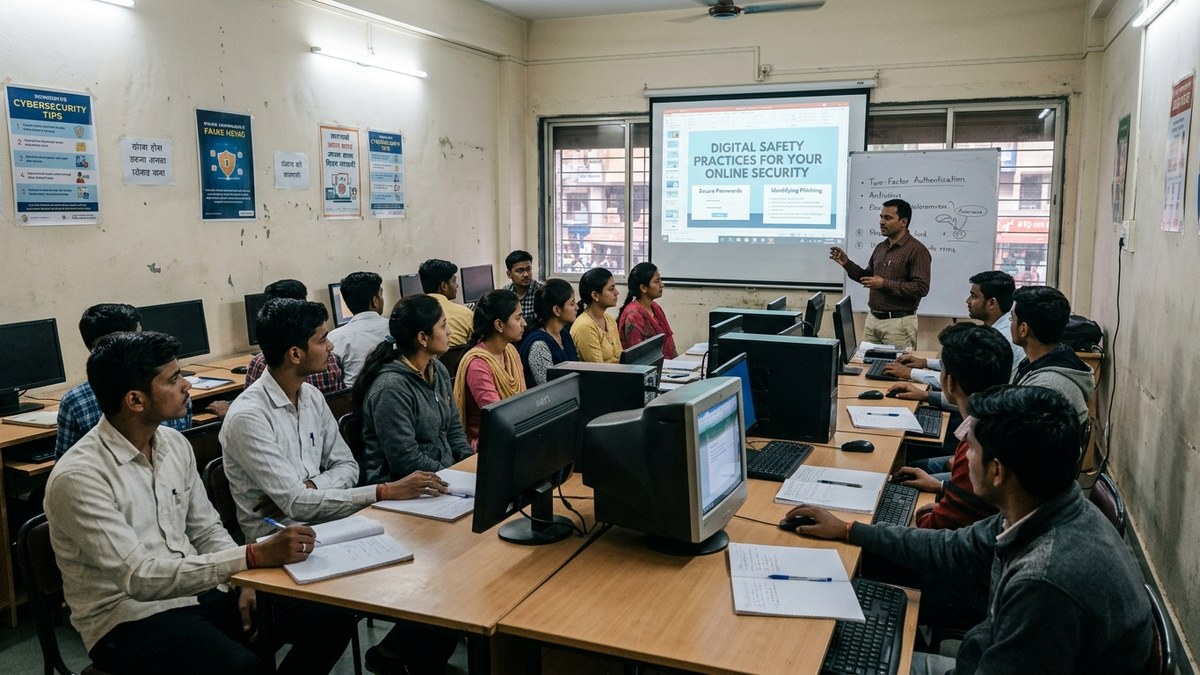
Creating a Safe Learning Environment at Home
Internet safety for kids isn’t just about rules. It’s about environment. The device matters. The software matters. But so does where the computer sits, what time they use it, and whether you’re actually present.
Place the computer in the living room or study area. Not in a bedroom. Not in a corner hidden from view. When kids know you might walk by anytime, behavior changes. Not because they’re hiding something bad necessarily. But because they’re more careful.
Set specific times for computer use. Not “whenever you want.” Specific hours. Specific duration. This creates boundaries that actually stick. It also prevents the late-night scrolling that leads to poor decisions.
Use the parental controls built into Windows, Mac, and Android. These aren’t just for young kids. Even teenagers benefit from website filters that block known malicious sites automatically. You’re not being paranoid. You’re being practical.
Keep antivirus software updated. Keep the operating system patched. Keep browsers updated. Most security breaches happen because people use outdated software. It’s not exciting. It’s not fun. It’s absolutely necessary.
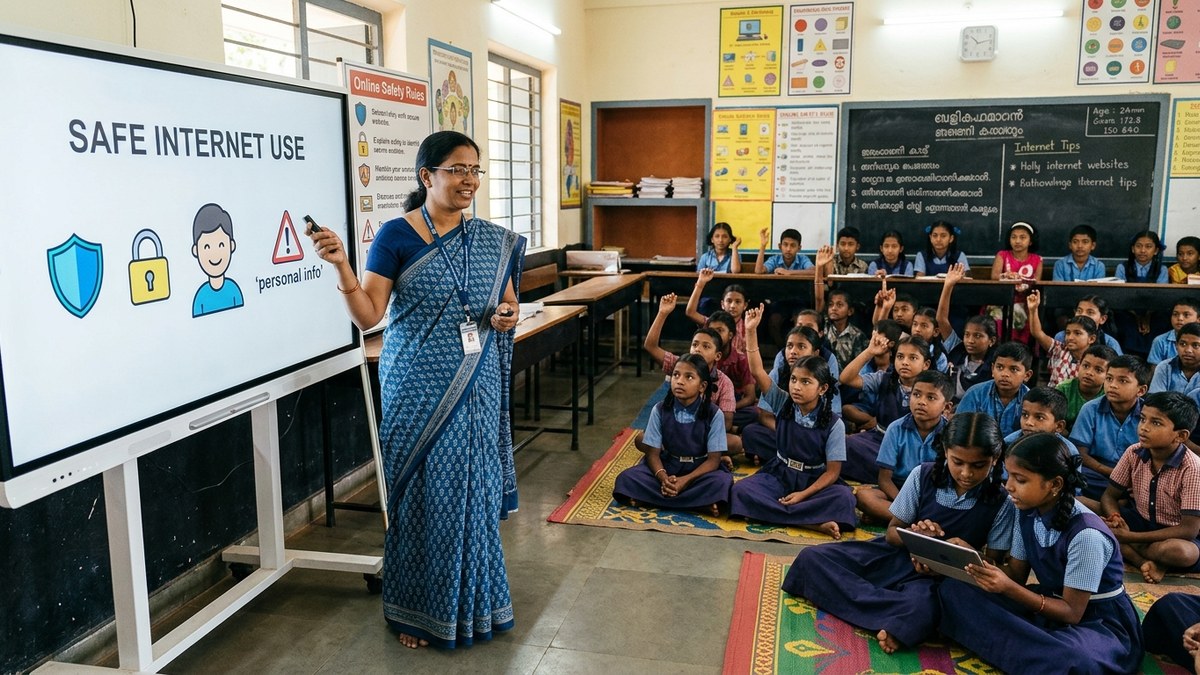
What Schools and Learning Centers Can Add
If your child attends a Point of Digital Learning (POD) or traditional tuition center, that educator has a role too. They should be teaching digital literacy skills students need alongside academic subjects. Not as an add-on. As part of core learning.
A trained educator running a POD should cover online safety as part of their curriculum. How to recognize phishing. How to evaluate website credibility. How to use search engines effectively without falling into misinformation traps. This isn’t extra. This is foundational.
Check whether your child’s learning center has a digital safety policy. Do they teach password management? Do they discuss cyberbullying? Do they talk about screen time balance? If not, ask why. If they don’t have answers, that’s a red flag.
Learn more about digital literacy skills students need to thrive in 2026 and beyond.
The Device Matters Too
Here’s what most parents get wrong: they think expensive devices are safer. They’re not. A well-maintained budget device with proper security is safer than an expensive laptop with no protection.
The APNA PC bundle solves this problem. You get a complete system: Mini PC with i3 7th Gen processor, 8GB RAM, 128GB SSD, monitor, keyboard, mouse, webcam, and headset. Everything you need for safe, effective learning at home. Pre-installed education software. Professional installation. Three years of warranty. All for Rs.30,000.
Why this matters for safety: you’re not buying a device alone. You’re buying a system designed for learning. The SSD is faster and more secure than older hard drives. The RAM is enough to run multiple programs without slowdown. The warranty means you have support when something goes wrong. That support matters when you have questions about security.
If you’re setting up online teaching from home, the APNA PC is equally valuable. Your students need a secure device. So do you.
Moving Forward: Your Action Plan
Don’t read this and do nothing. Pick one thing this week.
Week one: Have a conversation with your child about online safety. Not a lecture. A conversation. Ask them what they do online. Ask them if anything makes them uncomfortable. Listen more than you talk.
Week two: Set up parental controls on every device in your home. Yes, every one. Even the tablet. Even the phone.
Week three: Create a family agreement about internet use. Write it down. Sign it together. Make it real.
Week four: Invest in a proper learning device if you don’t have one. The APNA PC is designed exactly for this purpose. Safe. Secure. Supported.
Resources like the DIKSHA digital learning platform and the India Ministry of Education offer free materials on online safety. Use them.
Your child’s safety online isn’t optional. It’s your responsibility. Start today.