
Your Teaching Materials Don’t Have to Look Boring
Here’s the truth: most Indian teachers are stuck using the same old templates, the same dull fonts, and the same uninspiring layouts that put students to sleep before the lesson even starts. You don’t have to be one of them. Canva for teachers has changed the game, and if you’re running a tuition centre, managing a POD (Point of Digital Learning), or teaching from home, you need to know how to use it properly.
Whether you’re a homemaker stepping into tutoring, a senior citizen sharing knowledge online, or an edupreneur building your learning business, Canva for teaching gives you professional-quality teaching materials in minutes. Not hours. Not days. Minutes. Let’s cut through the confusion and show you exactly how.
What Makes Canva for Teachers Different
Most people don’t realise that Canva isn’t just for social media posts and birthday invitations. It’s a complete design solution for educators. The platform offers thousands of templates specifically built for teaching: classroom posters, quiz slides, worksheet layouts, flashcards, and study guides.
The best part? You don’t need design experience. You don’t need to understand colour theory or typography. Canva handles that for you. What you need is 15 minutes and a clear idea of what you want to teach.
When you’re creating canva presentations for class, you get:
- Drag-and-drop simplicity that anyone can master
- Access to millions of images, icons, and illustrations
- Customizable templates that match your teaching style
- The ability to brand your materials with your school or tuition centre name
- Export options for printing, projecting, or sharing digitally
This is exactly the kind of tool that works perfectly when you pair it with proper equipment. If you’re serious about building a POD or scaling your tutoring business, you need reliable hardware. The APNA PC bundle gives you everything: a Mini PC with i3 7th Gen processor, 8GB RAM, 128GB SSD, plus monitor, keyboard, mouse, webcam, and headset. All for Rs.30,000 with 3-year warranty and installation included. That’s your complete setup ready to run Canva smoothly, stream lessons, and manage your entire teaching operation.
Creating Worksheets That Actually Engage Students
Let’s be honest: worksheets are where most teachers fail. They’re either too simple, too cluttered, or just plain ugly. Canva for teaching fixes this.
Start by choosing a template. Search for “worksheet” and you’ll see hundreds of options. Pick one that matches your subject. Math worksheets. Language worksheets. Science worksheets. They’re all there.
Now customize it:
- Change the colours to match your school branding
- Replace the sample text with your actual questions
- Add relevant images that help explain concepts
- Include your name, class level, and date
- Adjust spacing so students have room to write answers
Here’s what makes this powerful: consistent, professional-looking canva worksheets build credibility. Parents see them and think you’re serious about education. Students engage better with materials that look intentional and well-designed. It takes the same time as making a boring worksheet, but the results are completely different.
Want to explore more teaching tools? Check out our guide on best edtech apps for Indian teachers to see how Canva fits into your broader teaching toolkit.
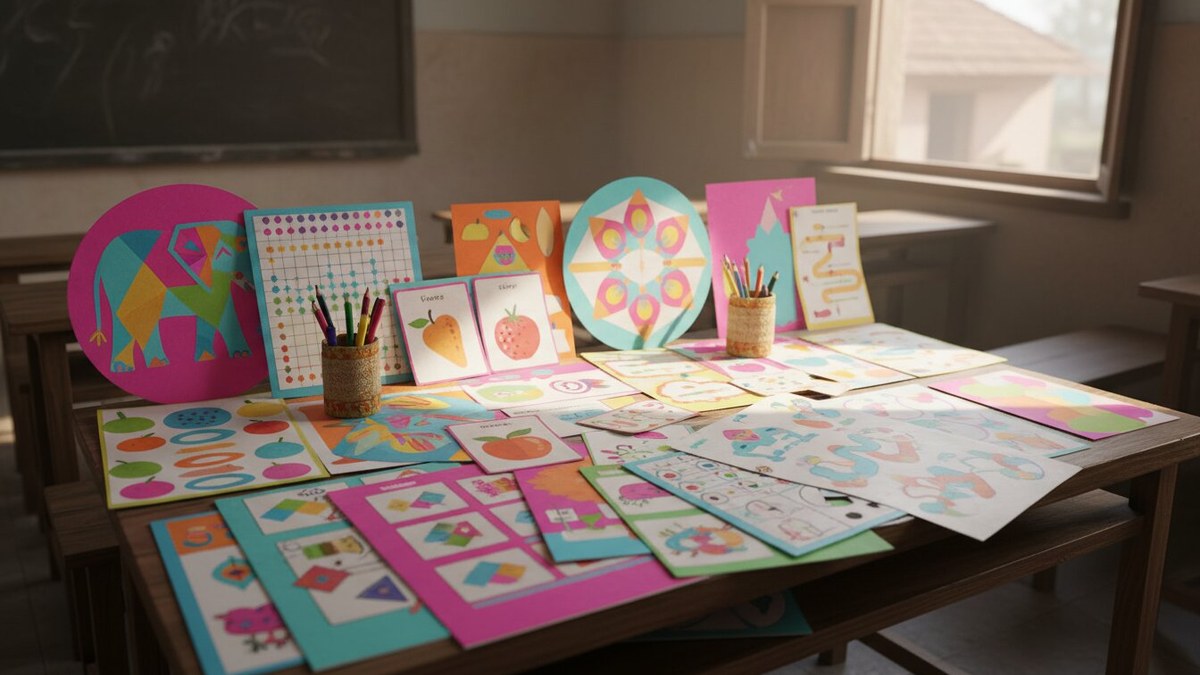
Building Presentations That Hold Attention
Canva presentations for class are where you really see the difference. Forget the standard PowerPoint blue backgrounds. Forget tiny fonts that students can’t read from the back of the room.
When you use canva for teachers, you’re working with professionally designed templates that already have good spacing, readable fonts, and visual hierarchy. Your job is simple: add your content and let the design do its work.
Pro tips for teaching presentations:
- Use one main idea per slide. Not five ideas. One.
- Keep text to minimum. Use visuals to explain concepts.
- Maintain consistent colours and fonts throughout
- Add animations sparingly. They distract more than they help.
- Test your presentation on the actual projector or screen you’ll use in class
The choosing the right computer for home learning article walks you through hardware considerations that matter when you’re presenting to groups. A solid machine with good graphics output makes a real difference.

The Real Advantage: Time and Consistency
Most people don’t realise that the biggest benefit of using canva for teaching isn’t the pretty designs. It’s the time you save and the consistency you maintain.
When you create your first worksheet or presentation, it takes maybe 30 minutes. The second one takes 15 minutes because you reuse elements. The third takes 10 minutes. By your tenth material, you’re producing professional resources in 5 minutes flat.
That’s time you get back. Time to actually plan better lessons. Time to give individual attention to struggling students. Time to build your business.
Consistency matters too. When all your materials look professional and cohesive, it changes how students perceive your teaching. It signals that you care about the details. That you’re serious about their learning.
Getting Started Right Now
Canva for teachers is free to start with. The free version works fine for most teachers. Explore the education templates. Pick one subject you teach. Create one worksheet or presentation this week. Print it. Use it. Notice the difference.
Then scale up. If you’re building a learning centre or expanding your tutoring operation, you need the right tools and the right hardware working together. The APNA PC bundle ensures your computer won’t slow you down. It’s built for this work: smooth Canva design, reliable video conferencing, fast file handling, everything an educator needs.
Ready to turn your teaching into a real business? Start your POD with TeachToEarn and get the support, training, and community you need to succeed.
Learn more about India’s education initiatives at the Ministry of Education and explore how digital tools fit into the Digital India initiative.